Optimizations That Make A Real Difference
You are in the final circle of a battle royale match, one opponent left, and your phone decides that is the perfect moment to drop to single-digit FPS. The stuttering costs you the game.
It is one of the most frustrating experiences in mobile gaming, and it happens far more often than it should. The good news is that most Android FPS problems are fixable without buying a new device.
The causes are almost always the same: background processes stealing resources, settings that were never optimized for gaming, a device running hotter than it should, or a combination of all three. Each of these has a solution, and most of them take less than five minutes to apply.
What You Will Learn
- The biggest FPS gains come from system-level changes: closing background apps, enabling performance mode, and using developer options.
- Thermal throttling is the most common cause of FPS drops after several minutes of gaming, not graphics settings.
- Developer options offer powerful but underused FPS optimizations, including Force GPU rendering and animation scale reduction.
- In-game graphics settings have the most visible immediate impact, but may not address the root cause of poor performance.
- Good gaming habits, including device cooling, storage management, and network optimization, sustain FPS gains over time.
Priority Optimization
High Priority (The "Big Wins")
- Close background apps: (High Gain / Easy) — Instantly clears RAM and stops background processes from "stealing" CPU cycles.
- Enable performance/game mode: (High Gain / Easy) — Forces the OS to prioritize your game’s power consumption and clock speed.
- Lower in-game graphics settings: (High Gain / Easy) — The most direct way to reduce the load on your GPU.
- Adjust Developer options: (High Gain / Moderate) — Involves tweaking hidden settings like Window Animation Scaleor Force 4x MSAA.
Moderate Priority (Stability & Smoothness)
- Manage device storage: (Moderate Gain / Easy) — Storage drives (especially on mobile) can slow down significantly once they hit 90% capacity.
- Enable high refresh rate: (Moderate Gain / Easy) — While this doesn't technically increase raw FPS, it allows your screen to actually displaythe higher frames you’re hitting.
- Thermal management habits: (Moderate Gain / Easy) — Prevents thermal throttling, where your device intentionally slows down to avoid melting.
- Network optimization: (Moderate Gain / Easy) — Essential for online play to reduce "ping" and stuttering.
Low Priority
Game booster apps: (Low to Moderate Gain / Easy) — These are hit-or-miss; they mostly just automate the process of closing other apps.
Why Your Android Game FPS Drops In The First Place
Before applying fixes, it helps to understand what is actually causing the problem. Most FPS guides skip this entirely and jump straight to tips, which means readers often apply the wrong solutions first. Knowing the root cause tells you exactly where to focus your efforts.
Hardware Limits: CPU, GPU, And RAM
Every Android game makes simultaneous demands on three core components: the CPU, which handles game logic and physics; the GPU, which renders the visuals; and RAM, which keeps game assets loaded and accessible. Even if you are navigating a fast-paced shooter or a complex Role-Playing Simulation Game, when any one of these runs at or near its limit, FPS drops follow.
Older or budget devices often struggle because their hardware simply cannot process what modern games demand at the highest settings. The fix in these cases is not a setting change but a tradeoff: lower visual fidelity in exchange for a stable frame rate. Knowing which component is the bottleneck helps you make that tradeoff intelligently.
Devices with less than 4GB of RAM are particularly vulnerable to FPS drops caused by memory pressure. When RAM fills up, Android starts closing and reloading assets mid-game, producing the stuttering that many users misidentify as a graphics problem.
Why This Matters For Performance
When using Android emulatorsor playing high-end titles, the CPU often becomes the primary bottleneck because it has to translate complex instructions in real-time. If your device has limited RAM, the system will struggle to keep both the emulator and the game assets active, leading to the "choppiness" described earlier.
Thermal Throttling: The Hidden FPS Killer
Thermal throttling is the single most common cause of FPS drops that worsen over time during a gaming session. When your device's processor reaches a temperature threshold, it automatically reduces its clock speed to prevent hardware damage. The result is a smooth first ten minutes, followed by progressively worse performance the longer you play.
The frustrating part is that thermal throttling feels exactly like a graphics settings problem, so users lower their visual settings when the real fix is keeping the device cooler. If your FPS is fine at the start of a session and gets worse as time goes on, thermal throttling is almost certainly the cause.
Identifying thermal throttling is straightforward. If your device feels warm or hot to the touch during gameplay and performance has degraded, the processor has already begun throttling. Cooling the device, even briefly, will restore performance faster than any settings change.
Software Overhead: What Is Stealing Your Performance
Android is a multitasking operating system, and it continues running background processes even when you are actively gaming. Social media apps refreshing their feeds, messaging apps maintaining connections, and system services running scheduled tasks all consume CPU cycles and RAM that your game needs.
On a device with modest hardware, the difference between gaming with twenty background apps running and gaming with two can be significant. Background processes are a resource drain that compounds with every additional app running, and most users have no idea how many are active at any given time.
Software overhead also includes animations and visual effects that Android runs across the entire operating system. These consume GPU resources even during gameplay, and reducing or disabling them through developer options is one of the most effective and most overlooked FPS optimizations available.
System-Level Optimizations: The Biggest FPS Gains

System-level optimizations produce the largest FPS improvements because they address the root causes of performance problems rather than working around them. Start here before touching any in-game settings or downloading any apps.
Enable Performance Mode And Game Mode
Most Android devices include a performance or high-performance mode in the battery settings that instructs the processor to prioritize speed over efficiency. Enabling this mode before gaming sessions allocates more CPU and GPU resources to your game and reduces the likelihood of the processor stepping down to a lower performance state mid-session.
Game Mode, available on most modern Android devices and typically found in the settings menu or game launcher, goes further. It suppresses notifications, blocks incoming calls from interrupting gameplay, restricts background app activity, and on many devices actively boosts processor performance for the duration of your session.
The combination of performance mode and game mode together produces measurable FPS improvements on virtually every Android device, regardless of hardware. Enable both before every gaming session and treat them as the foundation of every other optimization on this list.
Close Background Apps And Free Up RAM
Closing background apps before gaming is the single highest-impact, lowest-effort FPS optimization available. Open your recent apps screen and close everything that does not need to be running. On devices with less than 6GB of RAM, this step alone can produce a significant improvement in both FPS stability and loading times.
Pay particular attention to apps that maintain persistent background connections: streaming services, social media platforms, navigation apps, and cloud sync services. These consume both RAM and CPU cycles continuously, and they do not stop just because you have switched to a game.
On Samsung devices, the Device Care feature includes a one-tap optimization that closes background processes and clears RAM. On other manufacturers, a similar function is often available in the battery settings or game launcher. Use it immediately before launching any demanding game.
Manage Storage: The 15 Percent Rule
Android devices with less than 10 to 15 percent of their total storage free experience measurably slower read and write speeds. This affects gaming in ways that are easy to miss: longer loading times, asset streaming stutters mid-game, and occasional frame drops when the game needs to write data and the storage system is under pressure.
Keep your device's storage above the 15 percent threshold by regularly clearing downloads, removing unused apps, and offloading media to cloud storage or an external card where available. Many users focus on app settings while carrying gigabytes of unused files that are quietly degrading their device's performance.
Games themselves also accumulate cache files over time. Clearing an individual game's cache through the app settings occasionally removes corrupted temporary files that cause stuttering without affecting your saved progress.
Developer Options: The Underused FPS Toolkit
How to Enable Smooth Extreme + Max FPS Performance | Developer Options Tutorial
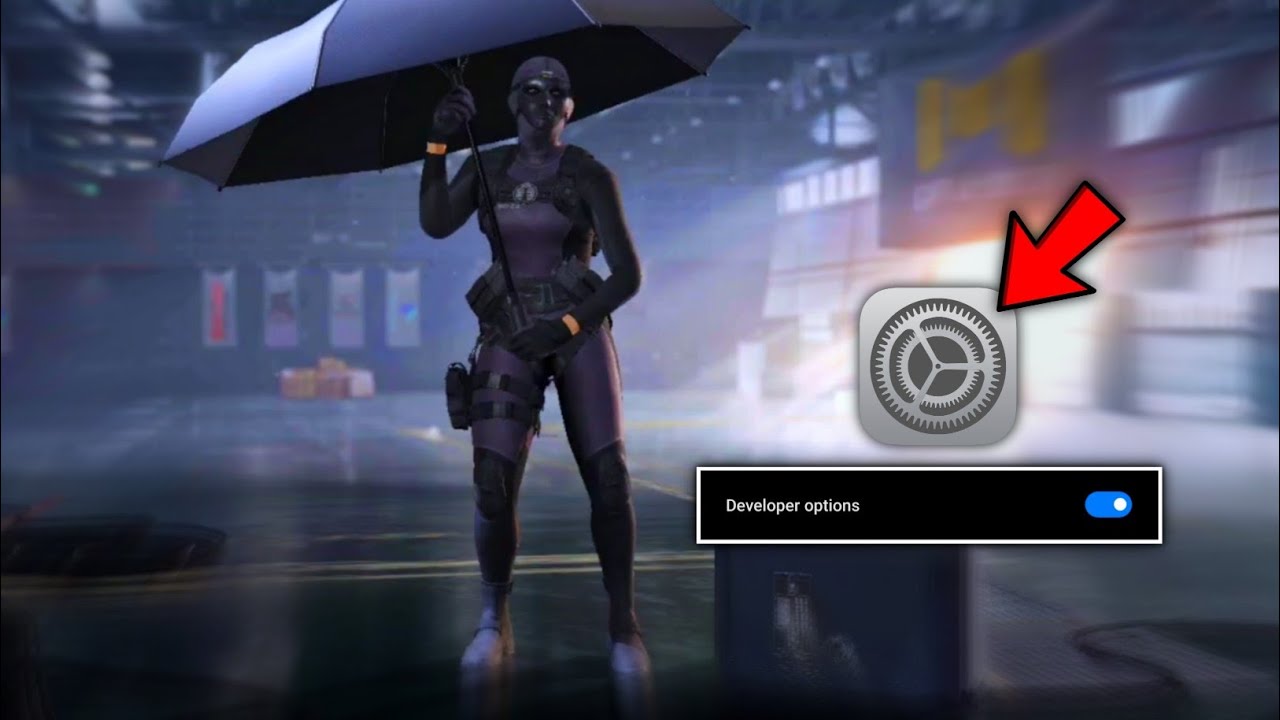
Developer options are Android's most powerful performance toolkit, and most users have never opened it. It contains settings specifically designed to improve rendering performance that are not accessible anywhere else in the operating system.
How To Enable Developer Options On Android
Enabling developer options takes less than a minute and requires no technical expertise:
- Open Settingson your Android device
- Scroll to About Phoneor About Device
- Find the Build Numberand tap it seven timesin succession
- Enter your PIN or password if prompted
- Return to the main Settings menu
- Find Developer Optionsin the list, typically near the bottom
Developer options are now enabled. The settings within it persist until you disable the menu, so you only need to do this once.
Force GPU Rendering And Animation Scale Settings
Once inside developer options, three settings produce the most meaningful FPS improvements for gaming:
- Force GPU rendering:Forces apps to use the GPU for 2D rendering operations that would otherwise be handled by the CPU, freeing up CPU resources for game logic. Enable this toggle.
- Window animation scale:Controls the speed of window open and close animations. Set this to 0.5x or off entirely.
- Transition animation scale:Controls screen transition speeds. Set this to 0.5x or off.
- Animator duration scale:Controls in-app animation speeds. Set this to 0.5x or off.
Reducing animation scales to 0.5x makes the entire operating system feel faster and frees GPU resources that Android would otherwise spend on visual effects during gameplay.
Limit Background Processes And GPU Rendering Profile
Two additional developer options settings are worth adjusting. Limiting background processesrestricts how many background apps Android keeps alive simultaneously. Setting this to two or four background processes prevents resource creep from running apps from degrading gaming performance.
The GPU rendering profileoption, labeled Profile GPU rendering on most devices, overlays a real-time graph on your screen showing frame rendering times. While this is primarily a diagnostic tool rather than a performance boost, it allows you to see exactly when and why FPS drops occur, making every other optimization decision more informed.
In-Game Graphics Settings: Visible Gains, Smart Tradeoffs
In-game graphics settings are where most users start their optimization journey, and while they do produce real FPS gains, they are more effective when applied after system-level optimizations have already been made. The goal is to find the settings that cost the most performance for the least visual return.
The Settings That Impact FPS The Most
Not all graphics settings have equal impact on performance. In order of FPS impact, these are the settings to adjust first:
- Shadows:Shadow rendering is extremely GPU-intensive. Reducing shadow quality or disabling shadows entirely produces one of the largest single FPS gains available in any graphically demanding game.
- Anti-aliasing:Smooths jagged edges but at significant GPU cost. Disabling it on a mobile screen, where pixels are small, and the effect is subtle, is an easy win.
- Render resolution or graphics quality:Lowering the overall rendering resolution reduces the total number of pixels the GPU must process each frame. The visual difference on a small screen is less noticeable than on a monitor.
- Draw distance:Reduces how far into the distance the game renders objects. Lower settings mean less work for the GPU each frame.
- Post-processing effects:Bloom, motion blur, depth of field, and similar effects are purely visual and consume GPU resources. Disable all of them for pure performance.
How To Find The Right Balance For Your Device
The right settings balance depends on your specific device's hardware capabilities. A useful approach is to start with all settings at their lowest, confirm you are getting a stable target frame rate, and then incrementally raise individual settings until performance begins to suffer. That point is your hardware's ceiling for that particular setting.
Do not chase maximum visual quality on hardware that cannot sustain it. A game running at a locked 60fps on medium settings is a fundamentally better experience than the same game struggling between 30 and 45fps on high settings. Frame rate consistency matters more than visual fidelity in competitive games.
On devices with a high-performance chipsetbut insufficient cooling, you may find that high graphics settings are sustainable for short sessions but cause thermal throttling over time. In these cases, a moderate graphics preset that keeps the device cooler will produce better average FPS across a full session than the highest preset that triggers throttling after ten minutes.
Game-Specific Tips For Popular Titles
Popular mobile games offer their own FPS settings that go beyond the general graphics menu:
- PUBG Mobile:Enable Smooth graphics with Extreme frame rate for the best FPS on mid-range devices. Disable shadows and reduce the rendering scale in the advanced settings.
- Free Fire:Set graphics to Low and frame rate to High. Disable the color settings enhancements, which consume GPU resources without improving gameplay.
- Genshin Impact:Reduce render resolution to the lowest setting first, as this has the largest single impact on performance. Lower character quality before reducing environment detail.
- Call of Duty Mobile:Enable Low graphics with Max frame rate. Disable depth of field and bloom in the advanced graphics settings.
Display Settings And Refresh Rate
😍How To Change Phone Refresh Rate | How To Increase Refresh Rate On Android | Increase Refresh Rate
Your display's refresh rate determines the maximum number of frames your screen can show per second. Getting this setting right ensures that the FPS your device is capable of rendering actually reaches your eyes.
How Refresh Rate Affects Your Gaming Experience
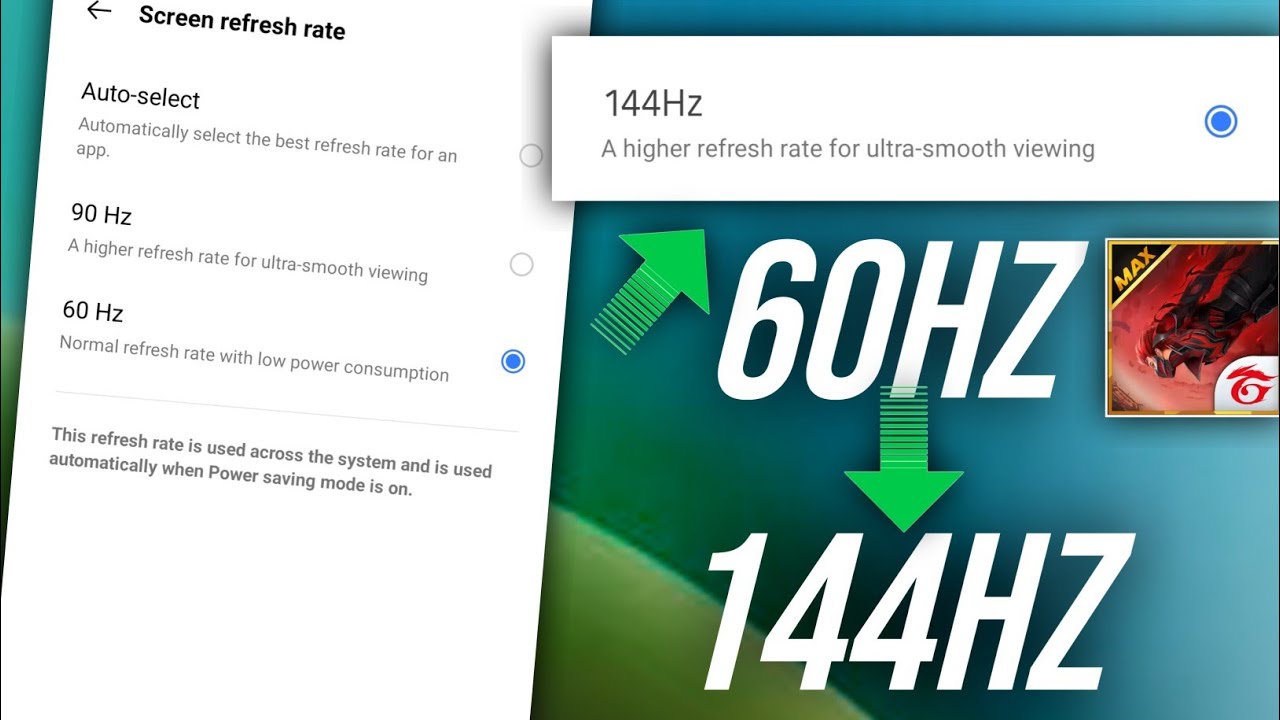
A 60Hz display can show a maximum of 60 frames per second regardless of how many frames the GPU renders. Devices with 90Hz, 120Hz, or 144Hz displayscan show proportionally more frames, producing noticeably smoother motion and more responsive input during gameplay.
If your device supports a high refresh rate, but it is not enabled, you are leaving a significant portion of your gaming experience on the table. The difference between 60Hz and 120Hz is immediately perceptible in fast-paced games, particularly in camera movement and aiming precision.
High refresh rates do increase power consumption and heat generation, both of which can contribute to thermal throttling in long sessions. The tradeoff is worth it on devices with good thermal management but may require monitoring on older or budget hardware.
Enabling High Refresh Rate On Android
To enable a higher refresh rate on your Android device:
- Open Settingsand navigate to Display
- Find the screen refresh rateor Motion smoothness
- Select the highest available option for your device
- Some games also have their own frame rate cap settings within their graphics menu; ensure this matches or exceeds your display refresh rate.
Not every game supports high frame rates. A growing number of popular titles now include 90fps and 120fps options in their advanced settings, but many older games are capped at 60fps regardless of display refresh rate.
Balancing Refresh Rate And Battery Life
Running a high refresh rate continuously drains the battery faster and generates more heat. If you are experiencing thermal throttling on a high refresh rate device, consider switching to 60Hz for longer gaming sessions and reserving the higher refresh rate for shorter, competitive play.
Some Android devices include an adaptive refresh rate mode that automatically adjusts between refresh rates based on on-screen content. This mode can reduce heat generation while preserving the high refresh rate experience during fast-paced gameplay sequences.
Keeping Your Device Cool: Thermal Management For Sustained FPS
Thermal management is the most consistently underestimated factor in mobile gaming performance. A device that starts a session at full performance but throttles after ten minutes will deliver a worse average FPS than a cooler device running at slightly lower peak performance throughout.
Why Heat Is Your Biggest Enemy In Long Gaming Sessions
Modern mobile processors are capable of impressive performance, but they generate significant heat when running at full speed. Unlike desktop computers with active cooling systems, smartphones rely entirely on passive heat dissipation through the chassis. When that dissipation cannot keep up with heat generation, throttling begins.
The problem compounds over time. A warmer device throttles earlier in subsequent sessions because it starts each session at a higher base temperature. Heavy gamers who play for hours daily often notice that their device performs better first thing in the morning than it does after several sessions throughout the day.
Charging while gaming is a particularly common mistake. Charging generates its own heat independently of the processor, and the combined thermal load of gaming plus charging pushes devices into throttling territory much faster than gaming alone.
Practical Cooling Habits That Work
Several cooling habits produce immediate and measurable improvements in sustained FPS:
- Remove your phone case while gaming. Cases are designed to protect against drops, not to dissipate heat. Many trap heat against the chassis, accelerating throttling.
- Avoid gaming in direct sunlight or in warm environments. Ambient temperature directly affects how quickly your device heats up.
- Do not charge while gaming if you can avoid it. If you must charge, use a lower wattage charger to reduce heat generation.
- Take five-minute breaks between long sessions. Even a short break allows the device to cool significantly, resetting its thermal headroom.
- Place your device on a flat, hard surface rather than a fabric surface like a bed or sofa. Fabric surfaces block airflow around the chassis.
6 Thermal Management Habits For Sustained FPS
- Remove your casebefore every gaming session to allow heat to dissipate through the chassis.
- Avoid charging while gamingto eliminate the additional heat load from simultaneous charging.
- Play in a cool environmentaway from direct sunlight and heat sources
- Take breaks between sessionsto allow the processor to return to a lower base temperature
- Use a flat, hard surfacerather than fabric to ensure airflow around the device
- Monitor device temperatureusing a system monitor app and stop playing if temperatures exceed 45 degrees Celsius consistently
Network Optimization For Online Games
Network issues are frequently misidentified as FPS problems because they produce similar symptoms: stuttering, delayed responses, and a game that feels unresponsive. Addressing network quality is essential for any online game, regardless of how well optimized your device is.
Why Network Issues Feel Like FPS Drops
High latency, packet loss, and unstable connections cause the game's state to update inconsistently, producing the visual stuttering that players describe as lag. The device is rendering frames correctly; the problem is that the game data arriving from the server is delayed or incomplete.
The distinction matters because no amount of graphics optimization will fix a network problem. If your FPS appears stable in offline modes but feels choppy in online play, the network is the issue, not your device's performance.
Packet loss is particularly insidious because it can occur even on a fast connection. A Wi-Fi network with high traffic, interference from neighboring networks, or a weak signal can produce packet loss that causes regular stuttering regardless of connection speed.
Wi-Fi Vs Mobile Data: Which Is Better For Gaming
Wi-Fi is almost always preferable to mobile data for gaming when a reliable connection is available. A strong Wi-Fi connection delivers lower and more consistent latency than mobile data, which fluctuates based on signal strength, network congestion, and tower distance.
When using Wi-Fi for gaming, position yourself as close to the router as possible and switch to the 5GHz band if your router supports it. The 5GHz band has less interference from neighboring networks than the 2.4GHz band and delivers more stable latency for gaming.
Mobile data can be an acceptable alternative on a strong 4G or 5G connection, but it is more variable than a good Wi-Fi connection. If you must use mobile data, ensure you have at least four bars of signal and are not in an area with high network congestion.
Reducing Latency And Packet Loss On Android
Several steps reduce latency and improve connection stability for online gaming:
- Enable Wi-Fi calling and VoLTE through your carrier settings to reduce network switching during gaming sessions
- Disable Wi-Fi scanning and Bluetooth scanning in location settings, as these cause brief network interruptions
- Use your game's closest available server region to minimize the physical distance data must travel
- Close streaming and download apps before gaming to reduce network congestion on your home connection
- Restart your router periodically, as routers under sustained load accumulate connection state that can degrade gaming performance.
Game Booster Apps: What Works And What Does Not
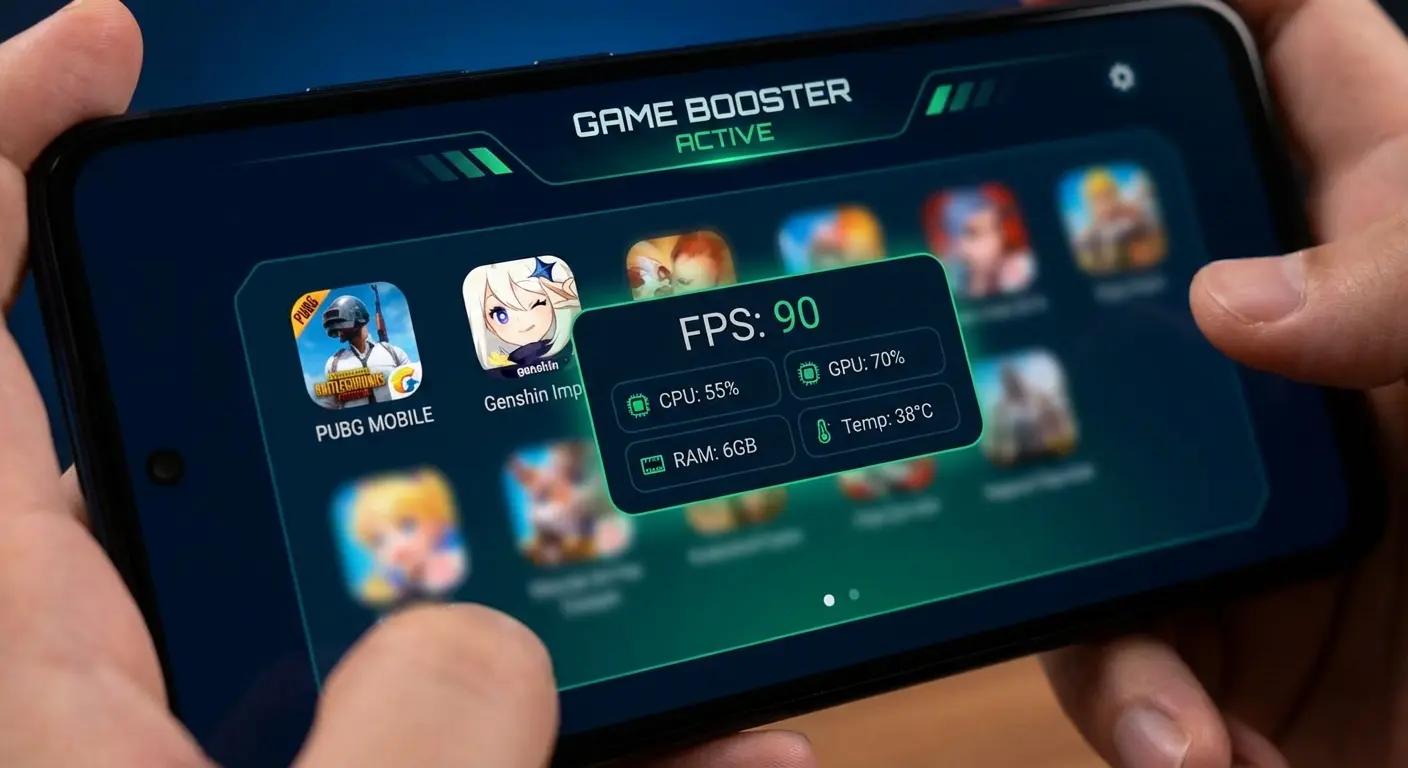
Game booster apps are among the most marketed solutions for Android FPS problems, and they are also among the most misunderstood. Understanding what they actually do helps you evaluate whether they are worth using.
How Game Booster Apps Work
Game booster apps improve performance through a limited set of mechanisms: closing background processes, clearing RAM before game launch, suppressing notifications, and occasionally adjusting CPU priority for the active game. These are useful functions, but they are the same functions that Android's built-in game mode and performance settings already perform.
The core issue is that most booster apps advertise dramatic FPS improvements that their actual mechanisms cannot deliver. Closing background processes helps; it cannot, however, add hardware capability that the device does not have or override the thermal throttling behavior of the processor.
Some booster apps also run their own background processes continuously, consuming the very resources they claim to free up. A booster app that is always running in the background is a net negative for performance, not a positive.
Built-In Game Modes Vs Third-Party Boosters
Built-in game modes from device manufacturers consistently outperform third-party booster apps in independent testing. Samsung's Game Launcher, Asus's Armoury Crate, OnePlus's Pro Gaming Mode, and similar manufacturer tools have direct access to hardware-level performance settings that third-party apps cannot reach.
If your device has a built-in game mode or gaming hub, use it exclusively and skip third-party boosters. The built-in tools do everything a third-party booster does and typically do it more effectively with less overhead.
The one exception is devices with no built-in game mode and older Android versions, where system-level gaming optimizations are limited. On these devices, a lightweight third-party booster that focuses on closing background processes and clearing RAM before game launch can provide a modest but genuine improvement.
How To Monitor Your FPS On Android
How to Enable FPS Meter on Any Android Smartphone 2025
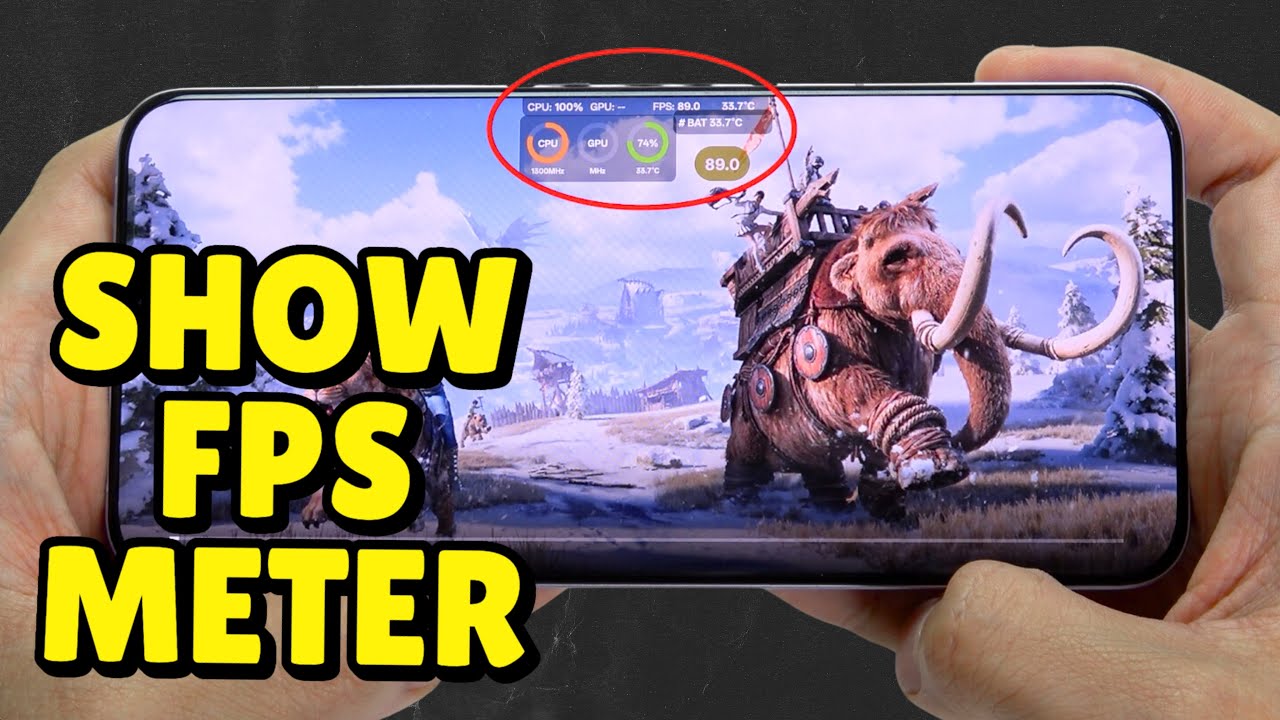
Knowing your actual FPS gives you objective feedback on whether your optimizations are working. Without it, you are relying on subjective feel, which is useful but imprecise.
Built-In FPS Counters And Developer Options Tools
Many popular mobile games include a built-in FPS counter in their settings menus. In PUBG Mobile, look under Settings, Graphics for the FPS display option. In Call of Duty Mobile, the FPS counter is available under Settings, Audio and Graphics. Check your specific game's settings menu first before using any external tool.
Within developer options, the GPU rendering profile overlay provides a real-time visualization of frame rendering times as colored bars at the bottom of the screen. The green line represents the 16ms threshold for 60fps. Bars consistently above this line indicate frames that are taking too long to render and causing FPS drops.
Third-Party FPS Monitoring Apps
For games without built-in counters, GameBench is the most reliable third-party FPS monitoring app available on Android. It records frame rate data during gameplay sessions and presents it as a graph, allowing you to identify exactly when and how severely FPS drops occur.
Gamers Globe and similar overlay apps provide real-time FPS displays that work across most games. These apps require accessibility permissions to display overlays during gameplay, which is worth noting before installation. Use them as diagnostic tools to confirm your optimizations are working, then disable them during competitive play to avoid any overhead.
Frequently Asked Questions About Boosting FPS On Android
How Do I Boost FPS On Android Games?
Close background apps, enable performance mode and game mode, adjust developer options settings, including Force GPU rendering and animation scales, lower in-game graphics settings, and keep your device cool. Apply these in order, starting with system-level changes for the biggest immediate gains.
Why Does My FPS Drop After A Few Minutes Of Gaming?
This is almost always thermal throttling. Your processor is reducing its speed to prevent overheating. Remove your case, avoid charging while gaming, and take breaks between sessions. If the problem persists, lower your in-game graphics settings to reduce the heat your device generates during gameplay.
What Developer Options Settings Improve FPS?
Enable Force GPU rendering, reduce Window animation scale, Transition animation scale, and Animator duration scale to 0.5x or off, and set Limit background processes to two or four. These settings free up CPU and GPU resources that Android would otherwise spend on system animations and background processes.
Does Game Mode Actually Work?
Yes. Game mode prioritizes processor resources for your active game, suppresses notifications, and restricts background app activity. Manufacturer-built game modes consistently produce measurable FPS improvements and should be the first thing you enable before any gaming session.
Do Game Booster Apps Improve FPS?
Modestly, in some cases. Built-in game modes outperform third-party boosters consistently. Most booster apps perform the same functions as your device's built-in tools, but with additional overhead. Apply system-level optimizations first; most users find they do not need a booster app afterward.
How Do I Check My FPS On Android?
Check your game's settings menu for a built-in FPS counter first. If none is available, enable the GPU rendering profile in developer options for a visual frame time display, or use GameBench for detailed frame rate recording across any game.
Why Does Charging While Gaming Reduce FPS?
Charging generates heat independently of the processor. Combined with the heat from gaming, the total thermal load pushes devices into throttling territory much faster. If you must charge during gaming, use a lower-wattage charger to reduce the additional heat it generates.
Which In-Game Graphics Settings Have The Biggest FPS Impact?
Shadows, anti-aliasing, render resolution, and post-processing effects produce the largest FPS gains when reduced or disabled. Adjust these before touching other graphics settings. Draw distance is also worth reducing on open-world mobile games, where it has a disproportionate impact on GPU load.
Final Thoughts
Boosting FPS on Android games is not about finding a single magic setting. It is about systematically removing every obstacle between your device's hardware and the game demanding its attention. Start with system-level changes, work through developer options, set your in-game graphics intelligently, and manage your device's temperature. Each layer compounds the previous one.
The priority table at the top of this guide exists for a reason: not every optimization produces equal results, and knowing where to start saves you from chasing small gains while ignoring large ones. Thermal management and background process control consistently produce the biggest improvements, yet they are the last things most users think about.
Your current device is almost certainly capable of a better gaming experience than you are getting from it right now. The hardware has not changed; the software environment around it just needed cleaning up. Apply these optimizations and the difference will be immediately noticeable.